MinervaKB comes with a content restriction system built-in. You can use it to control which user roles get permissions and can access to KB content.
This is especially helpful when you want to create some sort of membership site where only registered users can access the content.

Overview
Content restriction system uses WordPress user roles and has 3 restriction levels:
- Global restriction
- Topic restriction
- Article restriction
If you have content restriction enabled, these levels are checked from top to bottom:
- First, system checks to see if current user role restricted globally. If it is, access is denied.
- Then, all parent topics for given entity are checked. If user does not have access to any of them – access is denied.
- Finally, if user tries to open an article, article restriction rules are checked. If article is allowed for given user role, access is granted.
Global restriction
Global restriction is controlled in MinervaKB – Settings – Restrict Access. To start using content restriction on any level, you first need to enable it:
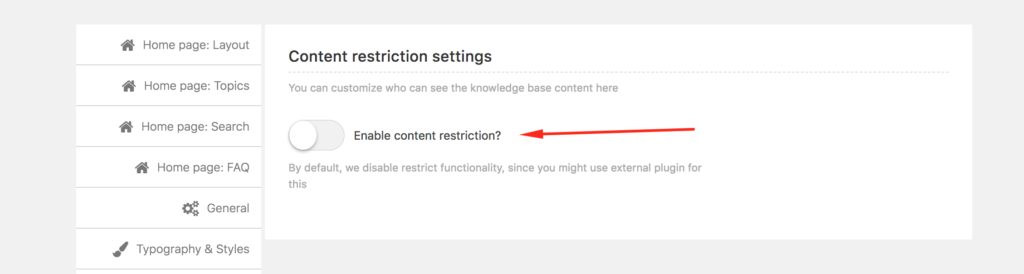
After you enable the restriction switch, restriction settings will become visible. At the top of the settings section you can see the Global restriction control, with all the User Roles available in your system.
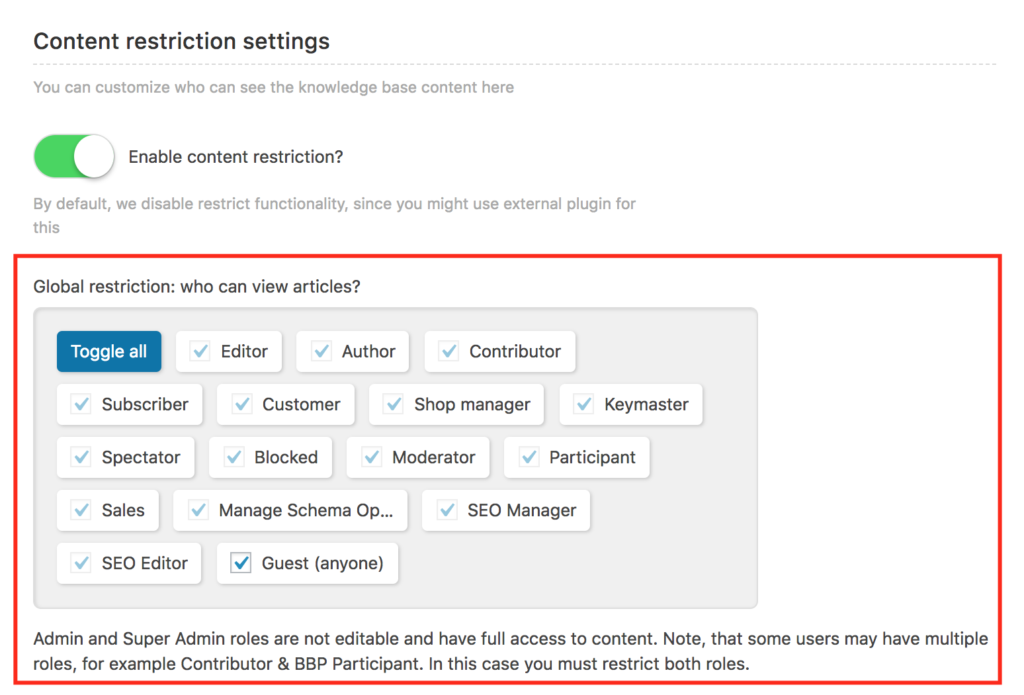
The checked items are the roles that have access to content. For example, if you uncheck the Guest role and save the settings, the content will be hidden for all not logged-in visitors.
Topic restriction
If you have content restriction enabled globally, additional controls are added on each topic edit screen, that allow you to control topic restriction.
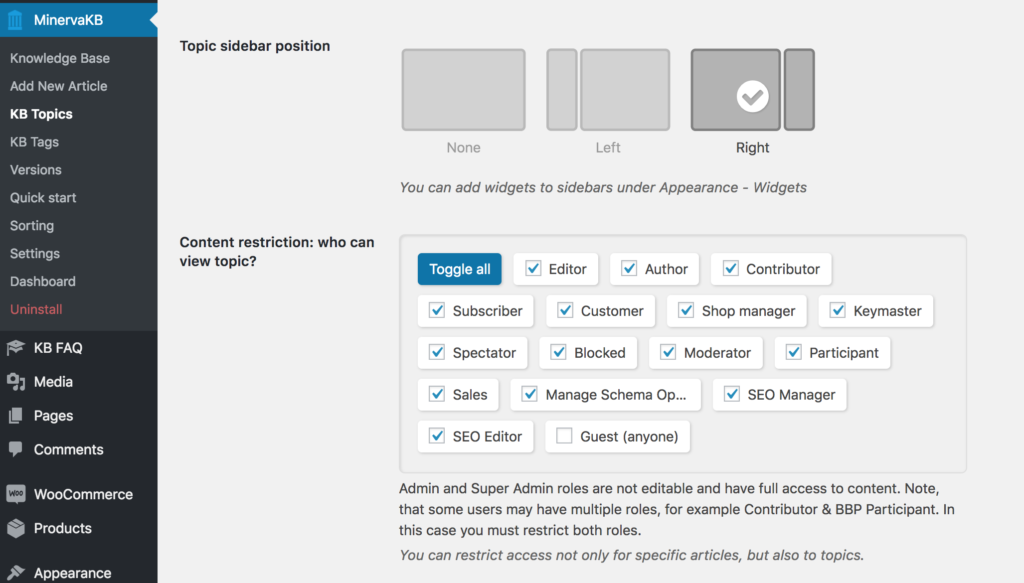
The control shows which roles are allowed to see content within this topic. Topic restriction is hierarchical, so if you restrict the top topic, article within child topics will be restricted as well.
Note, that enabling access to topic will not override global restriction rules.
Article restriction
Finally, you can restrict each specific article. You can see restriction meta box under main content editor and other KB-related boxes. It follows the same logic as global and topic roles editors.
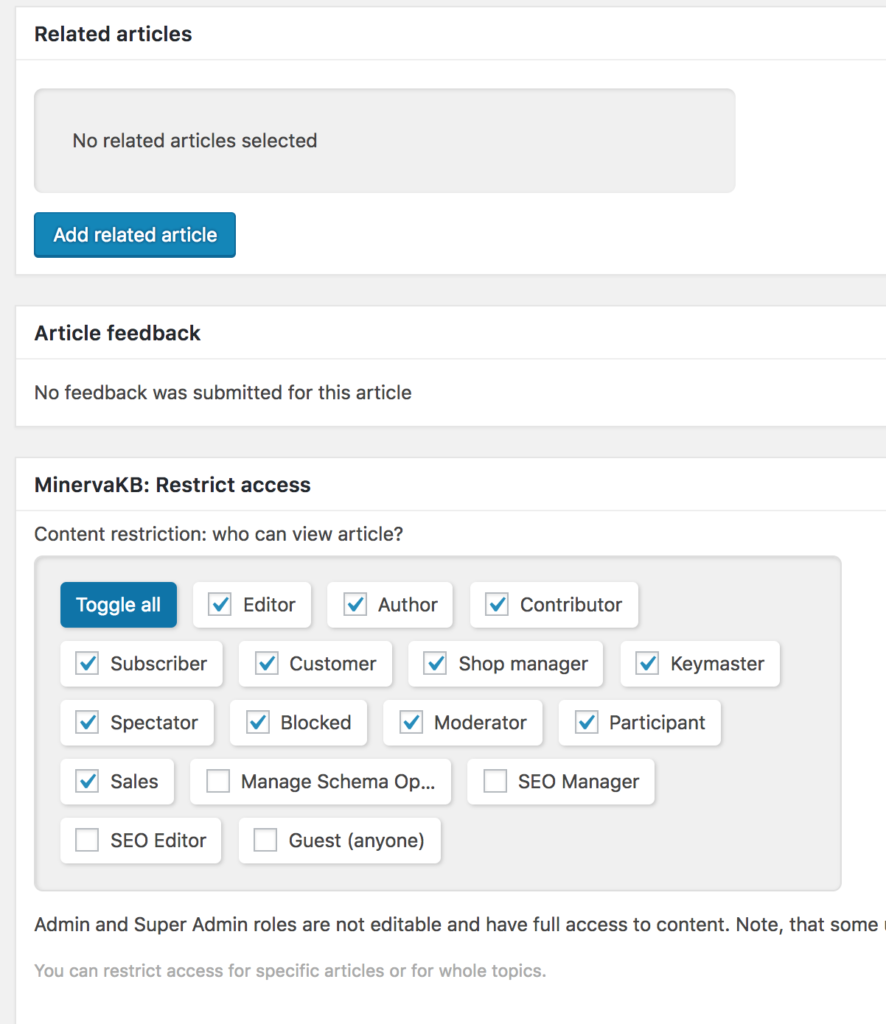
Note, that allowing access to specific article will not override restriction on topic or global level.
Actions and filters
If you need to customize how content restriction works, you can use filters to modify content restriction results. Currently (version 1.5.5), global filter is available: minerva_restrict_access_allowed. It controls the final result of content restriction checks.
Usage example:
add_filter('minerva_restrict_access_allowed', 'my_custom_restrict_filter');

function my_custom_restrict_filter($is_allowed) {
    $additional_user_check = true; // any of your additional custom checks

    if (!$additional_user_check) {
        return false;
    }

    return $is_allowed;
}
Additional settings
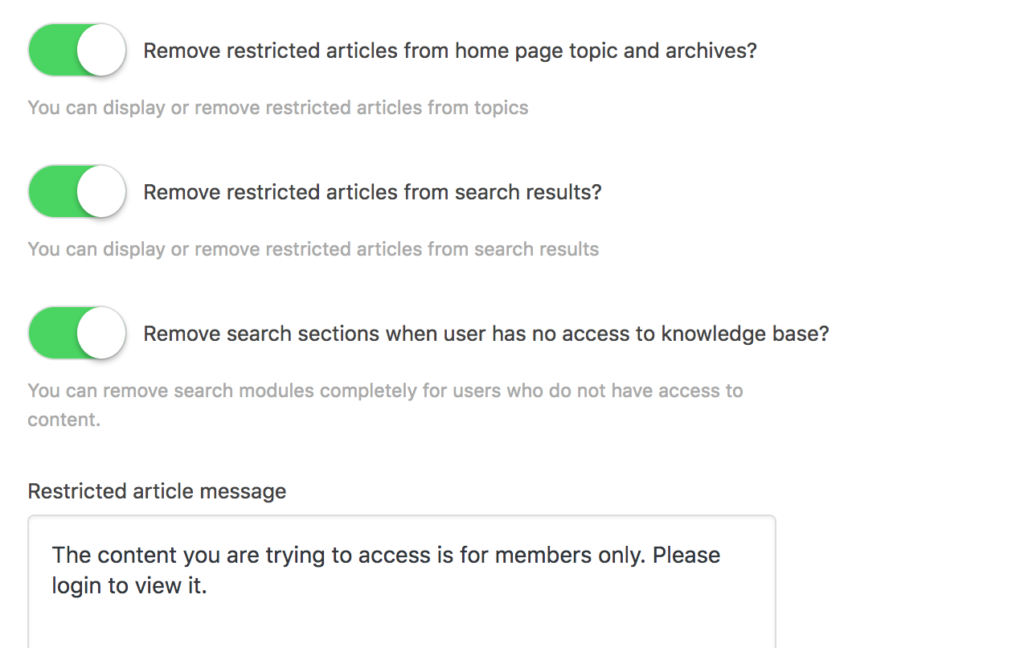
You can control many options of how restriction works, for example you can control if user should see other KB elements on restricted pages, restriction message and login form styles, search results for restricted entries and more:
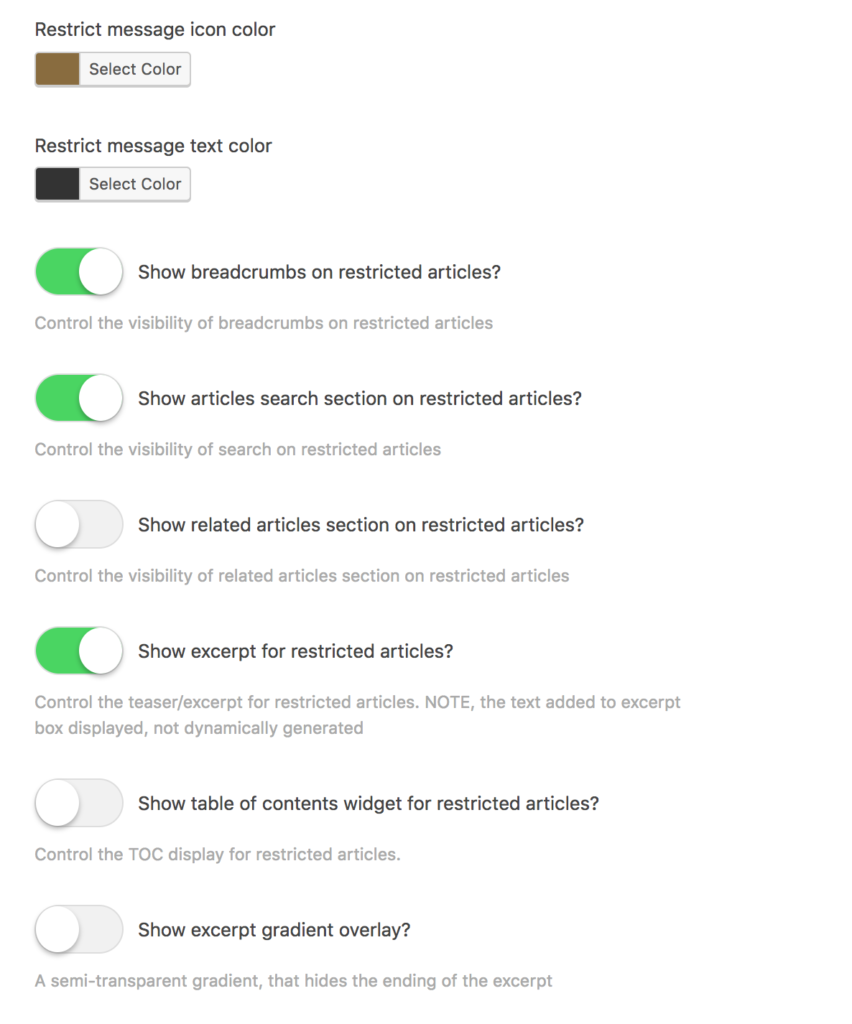
You can check all the settings available in MinervaKB – Settings – Content restriction.
Troubleshooting
In case of any strange behavior of restriction system (privileged users don’t have access / restricted users see the content) first thing to check is recent visitors log to see if the users actually have the proper roles.

Second, you may clear the restriction cache. Usually this is not necessary, but it could be useful in some situations (for example, when new content is created via some external plugin).